How To Effectively Manage Users in Security Technology

Trackforce
June 10, 2020 · 8 min read
Successful contract security companies know the importance of investing in technology. Effectively using technology streamlines daily operations, minimizes human error, and frees up time and resources to win more security contracts.
But the technology needs to be managed well to get all of the benefits. This is especially true with managing users in your security technology. Having the right user settings in any software, especially guard management software, can be the difference-maker in your operation.
There are 3 steps to effectively managing users in security reporting software:
Key takeaways
- User management keeps your system clean and secure.
Good habits for creating, assigning and deactivating users prevent clutter and risk. - Use a consistent username system.
A clear naming pattern makes it fast to find users, change permissions and review history. - Give each user only the access they need.
Roles for officers, dispatchers, supervisors, admins and clients keep responsibilities clear. - Deactivate, don’t delete.
Keeping departed users’ records intact preserves the history you may need later. - Choose software built for security.
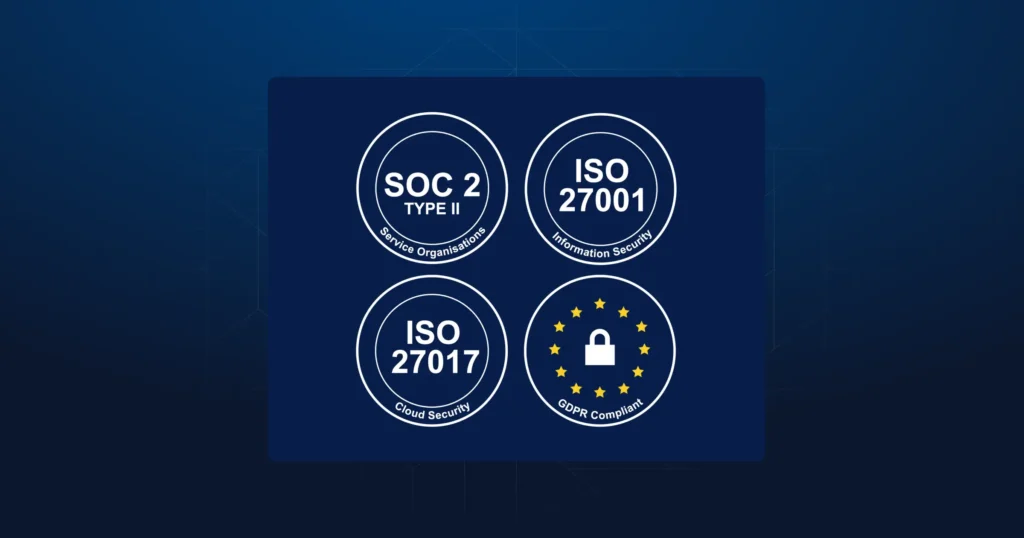
TrackTik is independently audited for SOC 2 Type II, ISO 27001 and ISO 27017.
1. Creating New Users/Usernames
Creating a new user in Silvertrac is a pretty easy process. For any new user, you’ll typically need a name, a username, a password, an email address (optional) and a user role.
The user role will be covered in the next section.
Having a system for usernames is key to keeping everyone in the system organized. If you ever need to change a user’s permissions, inactivate a user, or look up user history, having a consistent naming system will make finding information fast and easy.
Tip: Many companies use a combination of first and last name initials with the last four digits of a social security number, birth date, or payroll ID number.
Here are some additional tips when creating your user name:
- Use all lowercase letters
- Don’t use symbols
- Don’t use sensitive information
- Make sure you know how to change usernames after they’re created: some systems won’t let you change it
NOTE: Silvertrac requires usernames to be unique across the entire Silvertrac database, not just within your own Silvertrac portal.
2. Assigning User Roles
Giving users the wrong permissions and access creates clutter in your technology and might put you in some tricky situations. It’s important that every person your business interacts with, from entry-level security officers to customers, are only able to edit and/or access the areas that are relevant to them.
This is a lot harder to do with pen & paper reporting. All a bad acting officer would need to do was find out where reports are kept and they could change or hide any information that might make them look bad.
With Silvertrac, you have the ability to assign every user a role. When determining user roles and permissions, it is important to determine exactly what each user will need. Some users will need full edit access to every part of the software, while others only need to clock in, clock out, and report issues.
Different roles mean different access levels for every person who has a username in the portal. This keeps responsibilities clear and makes it easy for every user to get the information they need quickly. Silvertrac has roles set up for every type of employee and customer including:
- Officer
- Dispatcher
- Supervisor
- Admin
- Customer: Management Company
- Customer: Single Property Manager
3. Deactivating Users
When an employee leaves your security company your first thought might be to make sure they don’t have access to any sensitive company information. In many cases, people want to be able to delete the user permanently from the system.
But it turns out that deactivating users is better, and more legal, than completely deleting them. Due to state-mandated statutes of limitations, data collected by a user through reporting software needs to stay associated with that user as part of the permanent record for a company.
Luckily, deactivating a user in Silvertrac is simple and just as good as deleting them permanently.
Just select “edit user”, look up the user you want to deactivate, select the user and uncheck the “Active User” box. If for any reason you ever need to reactivate a user, you can still find them in the “User tab” and reactivate them with just a few clicks.
Common User Roles and What They Need
| Role | Typical access | Example tasks |
|---|---|---|
| Officer | Their own shifts, tours, post orders and reports | Clock in and out, scan checkpoints, report incidents |
| Dispatcher | Calls, dispatch and live officer status | Log requests, send officers, track responses |
| Supervisor | Their team’s activity, reports and schedules | Review and approve reports, monitor tours, coach officers |
| Admin | System settings, users and permissions | Create users, assign roles, configure sites |
| Client | Their own sites’ reports and activity | View reports, submit requests, review incidents |
Clients get their own access through the client portal in TrackTik security operations, so they see their sites without seeing anyone else’s.
User Management Checklist: From Onboarding to Offboarding
- Before day one: Create the user with your standard naming pattern and the right role. See what to know when hiring and onboarding guards.
- First shift: Confirm the user can log in and sees only what they need.
- Role change: Update permissions the same day someone is promoted or moves sites.
- Every quarter: Review all active users and remove access nobody needs anymore.
- Departure: Deactivate the user on their last day and keep their records intact.
- Client changes: Remove access for client contacts who leave and add their replacements.
Security Best Practices for User Accounts
- Give the least access needed. Start with the smallest role that lets someone do their job.
- Never share logins. Shared accounts make it impossible to know who did what.
- Keep personal data out of usernames. Avoid identifiers such as social security or birth date digits.
- Use strong passwords and any additional sign-in protection your software supports.
- Review access regularly and deactivate departed users immediately.
- Choose audited vendors. Ask for proof of independent security certifications.
For more, read what security guard companies should know about cyber security.
How TrackTik Helps You Manage Users and Protect Data
- One record per person. TrackTik people management keeps officer profiles, certifications and availability in one place, from onboarding to every shift.
- Role-based access for every team. Officers, dispatchers, supervisors and admins each see what their job requires in the TrackTik platform.
- Client access without the clutter. Clients see their own sites through the client portal.
- Independently audited security. TrackTik holds SOC 2 Type II, ISO 27001 and ISO 27017 and adheres to NIST SP 800-171. See Trackforce certifications and the Trackforce Trust page.
Book a TrackTik demo to see how it handles users across your operation.
Frequently Asked Questions
Latest Articles

Featured Resources
See Trackforce in action
Book a walkthrough with our team and see how it fits your operation.