Tips and Tricks to Get More Out of TrackTik
Trackforce
November 20, 2026 · 10 min read
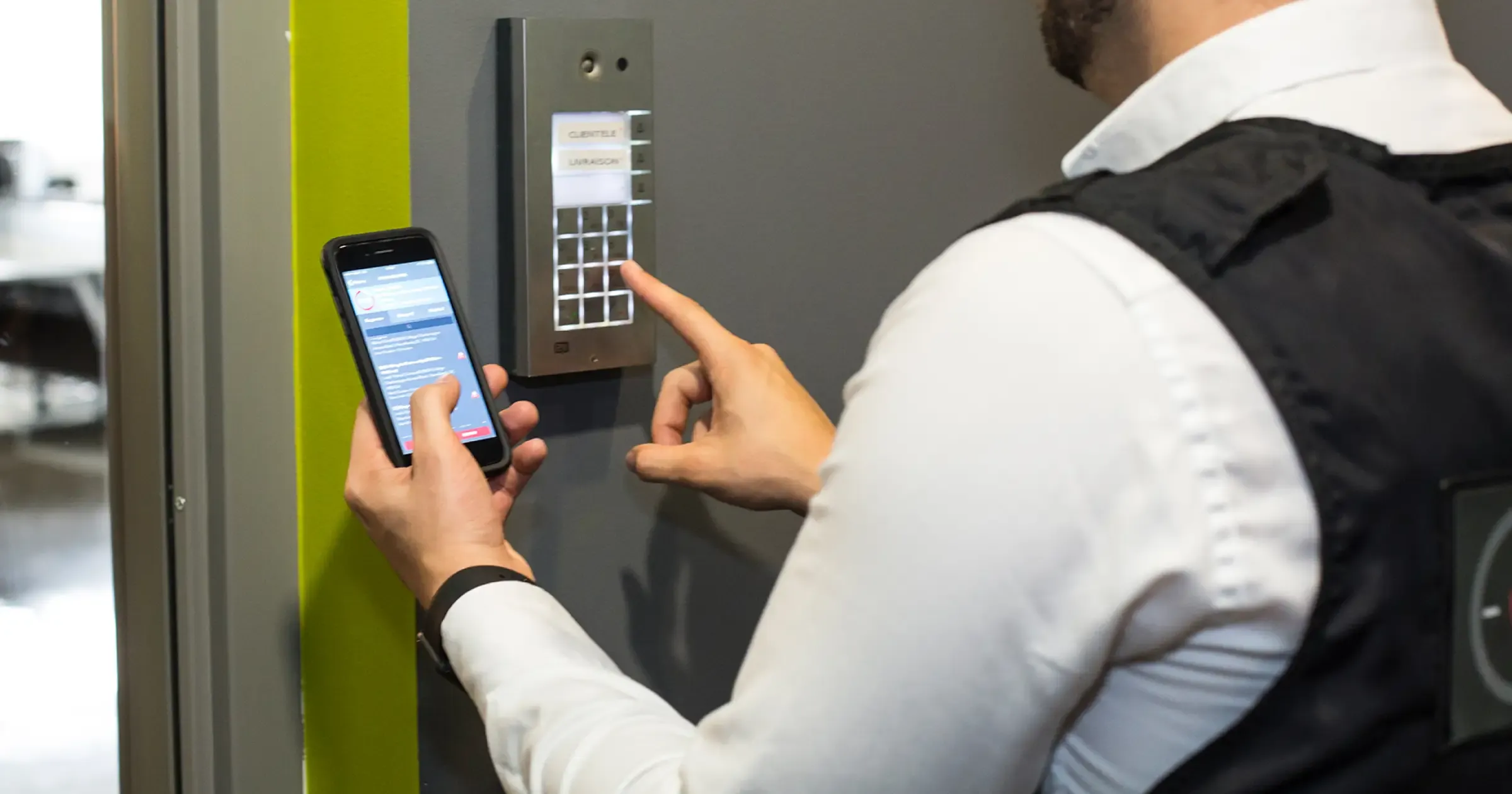
Security teams that set TrackTik up around how each role actually works spend less time clicking and more time on the post. Most of the friction we hear about comes from settings that were never adjusted after go-live, or from features people simply haven’t found yet.
The TrackTik tips and tricks below are grouped by role so officers, supervisors and back-office staff can each jump to what helps them most.
Key takeaways
- Officers capture cleaner reports in less time. Templates, dropdowns and photo attachments in the mobile app do most of the typing for them.
- Supervisors see every site from one screen. Supervisors and dispatchers get a live picture of every site instead of chasing updates by phone.
- Back-office reporting runs on a schedule. Build reports once and schedule them, so clients and managers get complete data without anyone hunting through separate menus.
- Rolling out by role speeds up adoption. Introducing features role by role, with short focused training, is the fastest path to adoption.
Tips for officers on the mobile app
Officers file better reports when the TrackTik mobile app asks only what matters for the situation in front of them. These settings take a few minutes for an admin to adjust and pay off on every shift.
Trim the home screen to what each role needs. The Guard Tour home screen shows an icon for each feature your organization enables, so an officer on a static post doesn’t need to scroll past dispatch or asset tools they never use. Review roles and permissions so each officer sees a short, relevant menu. (Guard Tour user guide, PDF)
Let conditional fields do the typing. Conditional fields change a report on the fly based on the officer’s answers, so follow-up questions appear only when they apply. For example, answering yes to “Is there any damage?” can open a group of property damage fields automatically. Officers move faster and supervisors get complete reports the first time. (Conditional fields, field groups and libraries)
Swap free text for dropdowns and clear labels. Field labels can carry short instructions about what to enter, and helper text works well on fields people tend to misread. Fewer open text boxes means less typing on a phone and cleaner data for reporting later. (Introduction to Report Management)
Use photos to tell the story. Officers can attach photos right inside a report form by tapping the camera icon, and report forms can also capture location and signatures. A clear photo often replaces a paragraph of description. (Guard Tour user guide, PDF)
Make tours quick with the right checkpoint type. Tours in the TrackTik Security Guard Tour System support NFC tags, barcodes, QR codes, GPS and manual check-ins. NFC is a simple tap of the phone against the tag, and color coding (green, yellow, red) shows at a glance which tours are on time, late or overdue. Exception verifications can prompt a yes/no question or a required photo at specific checkpoints so the officer captures conditions on the spot. (Guard Tour user guide, PDF)
Clock in first, every time. Activity is recorded in the shift report only while the officer is clocked in, so starting the shift in Time Clock means tours, reports and tasks roll up automatically at clock-out. (Guard Tour user guide, PDF)
Let ReportPro AI polish the narrative. Officers can jot rough notes and let ReportPro AI turn them into a clear, professional incident report, from either the mobile app or the web portal. AI-enhanced text is labeled, and the original notes are stored beside the edited version so supervisors can always see what the officer wrote. Supervisors also get instant executive summaries of long reports, which speeds up review.
Tips for supervisors and dispatchers
Supervisors save the most time when TrackTik brings exceptions to them, so they spend their shift responding instead of searching.
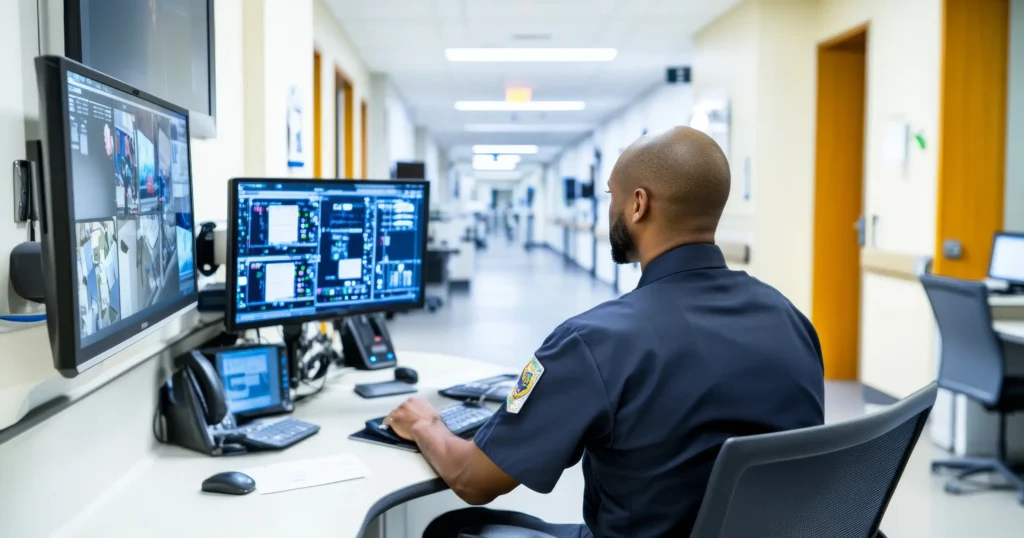
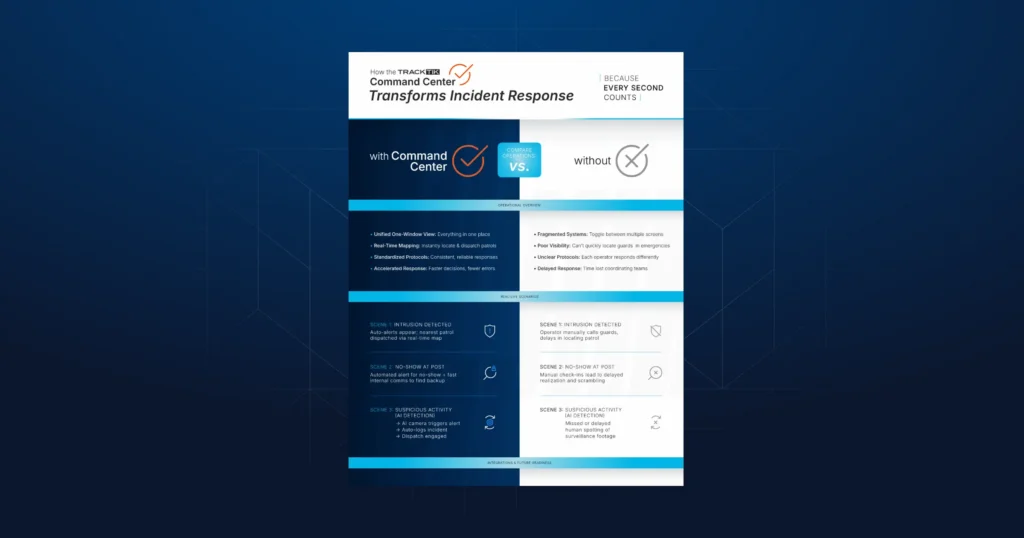
Work from one screen in Command Center. TrackTik Command Center turns operational exceptions into Calls to Action, such as an uncovered shift, a late checkpoint scan, a panic alert or an inactive device. Details open in a side panel, so operators can review, comment and create a dispatch while still watching new alerts come in. The list refreshes on its own. (Introduction to Command Center)
Hide the noise. CTA configurations let you hide alert types your team doesn’t handle and auto-resolve alerts once the underlying issue clears. Teams can also reorder dashboard sections so the view they use most sits at the top. (Introduction to Command Center)
Write the playbook into the alert. CTA instructions can be set by alert type and scoped by region or client, so a newer operator sees the exact steps for a panic alert right where they need them. (Introduction to Command Center)
Keep an eye on the field with the Live Dashboard. The Live Dashboard updates in real time as officers scan checkpoints, file reports and clock in or out. Supervisors can watch activity across all operations at once or filter to a specific site and zone when they need to focus on one customer location, and they can message officers from the same view. The Activity Feed offers a running stream of the same field activity. (Guarding Suite glossary)
Let deviation alerts chase late work. Dispatch and runsheet deviations can trigger email, SMS and push notifications when a job runs late or a runsheet is paused, so supervisors hear about problems without checking in by phone. (Release notes, June 2022)
Reach everyone at once. Broadcast messages go to all active officers for weather warnings or developing situations, and the Message Board can require officers to acknowledge important notices. (Guarding Suite glossary, Guard Tour user guide, PDF)
Tips for back-office teams and reporting
The fastest reporting setup is one where data reaches managers and clients automatically, with everything they need in one place.
Start from premade templates. TrackTik offers default report templates you can import into your portal instead of building from scratch. Go to Settings, then Report Templates, and use Import Template Package. It’s a quick way to get standard reports in front of officers on day one and adjust from there. (How to import report templates)
Build field libraries once and reuse them. Field libraries live at the region level and can be dropped into any report template in that region. When every site uses the same fields for the same incident, reports look consistent and roll up cleanly. (Field groups and libraries)
Set up incident categories and site locations early. Incident categories drive notifications, incident analytics and conditional sub-forms, and site locations feed the same analytics. When officers tag both in a report, charts under Operations Reports fill in automatically with no separate data entry. (Guarding Suite glossary)
Send Daily Activity Reports automatically. Summary report notifications compile everything that happened on a site for a day or shift and send it to site contacts on their own. Clients get one complete report instead of someone pulling data from separate screens. (Guarding Suite glossary)
Give clients self-serve access. The client portal shows clients a dashboard of activity at their site, and a Master Site can give a multi-location client access to all their sub-sites. That means fewer “can you send me” emails for your team. (Guarding Suite glossary)
Share dashboards from Data Lab. With the Data Lab add-on, admins and managers can share dashboards with clients, download dashboards as PDFs and export individual widgets as CSV files. (Release notes, November 2022, Using Data Lab)
Tips for training and adoption
Teams adopt TrackTik faster when each person learns the few features their role uses every day, with help close at hand when something doesn’t look right.
Train by role. Officers, supervisors and admins use different parts of the platform, so short role-specific sessions stick better than one long overview. Pair this with the trimmed home screen and permissions above so new officers only see what they’ve been trained on.
Use Trackforce Academy for self-paced learning. Trackforce Academy offers free introductory courses plus deeper paid courses on advanced features, available around the clock, and learners can earn a verified credential. It works well for onboarding new admins and for refreshers after a feature release.
Hand officers a quick reference. The Guard Tour user guide includes a troubleshooting table that covers common questions such as login errors, a clock-in that doesn’t register, a slow app, or a checkpoint that won’t scan. Keeping it at each post cuts down on calls to supervisors. (Guard Tour user guide, PDF)
Find answers fast in the Help Center. The TrackTik Answer Bot sits in the bottom left corner of every Help Center page, and signed-in users can submit a support ticket if the bot or articles don’t solve the issue. System administrators and account holders can also reach TrackTik Technical Support by phone at +1 (845) 474-0033, Monday to Friday, 7:30 a.m. to 7:30 p.m. Eastern. End users should start with their system administrator. (Where can I find help?)
Revisit settings after go-live. Features like conditional fields, Command Center CTA configurations and summary report notifications are easy to switch on later. A quarterly review with your Customer Success Manager is a good moment to check what your team could be using.
Free playbook
Automate Your Busiest Workflows
See where security teams lose hours to scheduling rework, patrol verification and reporting cleanup, and how to automate those steps with TrackTik.
TrackTik tips and tricks FAQs
Latest Articles
Featured Resources
See Trackforce in action
Book a walkthrough with our team and see how it fits your operation.